Patrick Müller • 7.6.2026 • 6 min lesen
Spirit Hands - Day 13
How to use the new TouchController framework with SpriteKit from Apple?
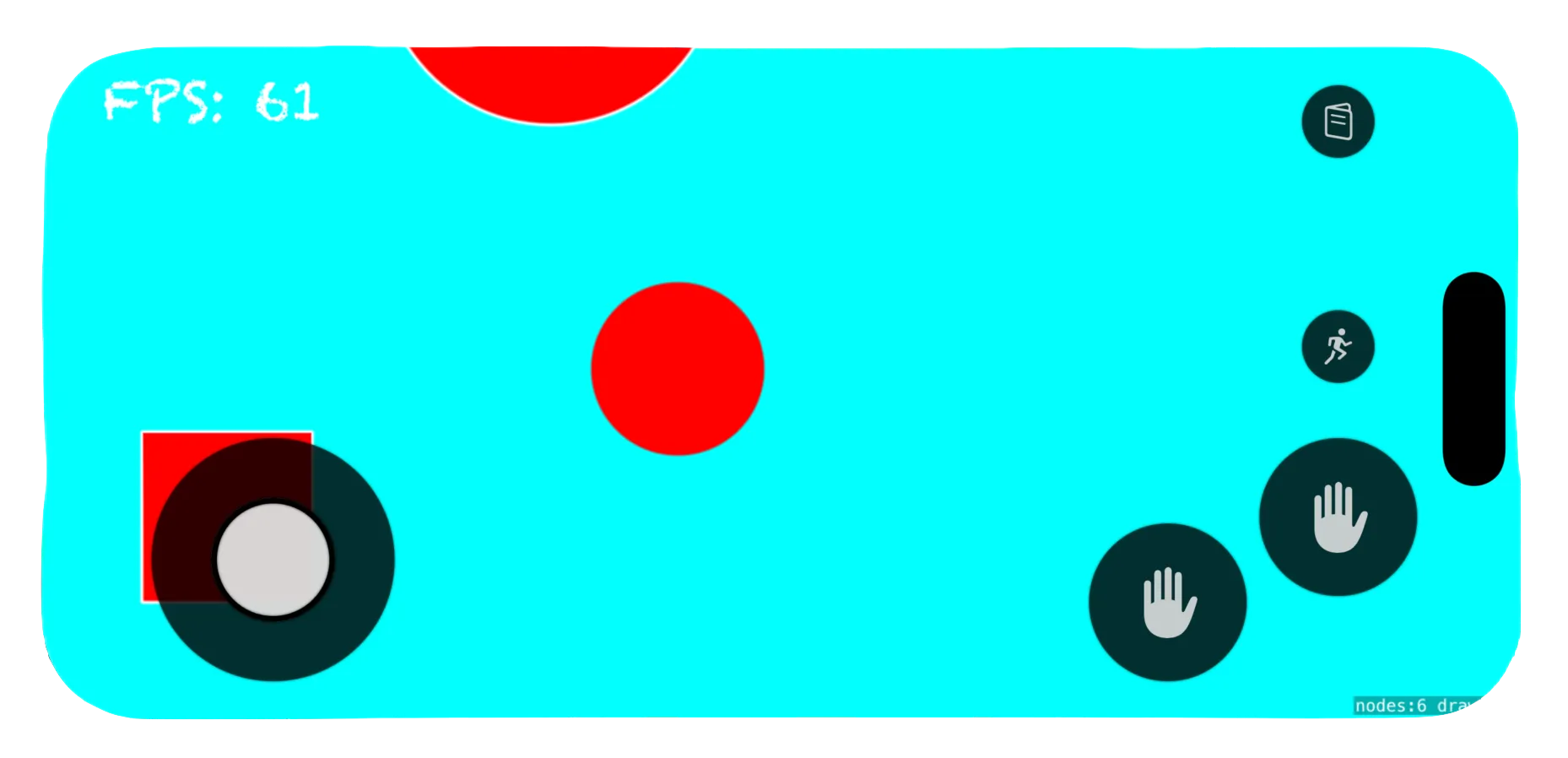
The Problem
For my upcoming game I need to have touch controls but I dont want to reinvent the wheel. Therefore I considered using the TouchController framework which should let you implement touch controls easily.
For my upcoming game, I needed on-screen touch controls. Since Apple introduced the TouchController framework in 2025, I assumed it would be the easiest way to add virtual buttons and thumbsticks without building my own solution from scratch. Unfortunately, getting TouchController working with SpriteKit turned out to be far less straightforward than expected. The framework documentation still shows no examples, and most examples focus on Metal rather than SpriteKit. After several hours of experimentation, I finally got everything working. In this post I’ll show the complete setup and explain the pitfalls I encountered along the way.
My first attempt looked something like this:
import TouchController

class View {
  var touchController: TCTouchController

  override init(size: CGSize) {
    // ...
    touchController = TCTouchController()
    let buttonDescriptor = TCButtonDescriptor()
    buttonDescriptor.label = .buttonA
    buttonDescriptor.contents = .buttonContents(forSystemImageNamed: "hand.raised.fill", size: CGSize(width: 100, height: 100), shape: .circle, controller: touchController)
    buttonDescriptor.size = CGSize(width: 100, height: 100)
    button = controller.addButton(descriptor: buttonDescriptor)

    touchController.addButton(buttonDescriptor)
    touchController.connect()
  }
}
Unfortunately, nothing appeared on screen.
Since SpriteKit is built on top of Metal, I initially thought this would work automatically with an SKView. It doesn’t.
To use TouchController, I ultimately had to:
- Build a Metal rendering pipeline
- Replace SKView rendering with SKRenderer
- Configure TouchController for the Metal view
- Render TouchController manually
- Read input through GameController
The Solution
Let’s tackle these problems one by one.
The Metal Pipeline
TouchController expects a Metal rendering environment. The following setup is enough to create a minimal render loop that we’ll extend later with SpriteKit and TouchController rendering.
final class MetalRenderer: NSObject, MTKViewDelegate {
  let device: MTLDevice
  let commandQueue: MTLCommandQueue

  init?(metalKitView: MTKView) {
    guard let device = MTLCreateSystemDefaultDevice(),
      let commandQueue = device.makeCommandQueue()
    else {
      return nil
    }

    self.device = device
    self.commandQueue = commandQueue

    metalKitView.device = device
    metalKitView.colorPixelFormat = .bgra8Unorm
    metalKitView.depthStencilPixelFormat = .depth32Float_stencil8

    super.init()
  }

  func draw(in view: MTKView) {
    guard
      let drawable = view.currentDrawable,
      let descriptor = view.currentRenderPassDescriptor,
      let commandBuffer = commandQueue.makeCommandBuffer()
    else {
      return
    }

    commandBuffer.present(drawable)
    commandBuffer.commit()
  }
}
SKRenderer
Since TouchController works directly with Metal, we can’t rely on the traditional SKView rendering path.
Instead, SpriteKit needs to be rendered manually using SKRenderer, which allows us to integrate both SpriteKit and TouchController into the same Metal command buffer.
final class MetalRenderer: NSObject, MTKViewDelegate {
  let device: MTLDevice
  let commandQueue: MTLCommandQueue
  // store the renderer
  let renderer: SKRenderer

  init?(metalKitView: MTKView) {
    guard let device = MTLCreateSystemDefaultDevice(),
      let commandQueue = device.makeCommandQueue()
    else {
      return nil
    }

    self.device = device
    self.commandQueue = commandQueue

    // create the renderer and add a scene to it
    self.renderer = SKRenderer(device: device)
    let scene = SKScene(size: self.view.bounds.size)
    scene.backgroundColor = .black
    scene.scaleMode = .resizeFill
    self.renderer.scene

    metalKitView.device = device
    metalKitView.colorPixelFormat = .bgra8Unorm
    metalKitView.depthStencilPixelFormat = .depth32Float_stencil8

    super.init()
  }

  func draw(in view: MTKView) {
    guard
      let drawable = view.currentDrawable,
      let descriptor = view.currentRenderPassDescriptor,
      let commandBuffer = commandQueue.makeCommandBuffer()
    else {
      return
    }

    // update and render your SKScene
    self.renderer.update(atTime: CACurrentMediaTime())
    self.renderer.render(
      withViewport: view.bounds,
      commandBuffer: commandBuffer,
      renderPassDescriptor: descriptor
    )

    commandBuffer.present(drawable)
    commandBuffer.commit()
  }
}
TouchController setup
Once the Metal pipeline and SpriteKit renderer are in place, we can create the TouchController instance and add our controls.
final class MetalRenderer: NSObject, MTKViewDelegate {
  let device: MTLDevice
  let commandQueue: MTLCommandQueue
  let renderer: SKRenderer
  // store the controller
  let touchController: TCTouchController

  init?(metalKitView: MTKView) {
    guard let device = MTLCreateSystemDefaultDevice(),
      let commandQueue = device.makeCommandQueue()
    else {
      return nil
    }

    self.device = device
    self.commandQueue = commandQueue

    self.renderer = SKRenderer(device: device)
    let scene = SKScene(size: metalKitView.bounds.size)
    scene.backgroundColor = .black
    scene.scaleMode = .resizeFill
    self.renderer.scene

    let touchControllerDescriptor = TCTouchControllerDescriptor(mtkView: metalKitView)
    touchController = TCTouchController(descriptor: touchControllerDescriptor)
    touchController.drawableSize = metalKitView.drawableSize

    // use the button from above
    let buttonDescriptor = TCButtonDescriptor()
    buttonDescriptor.label = .buttonA
    buttonDescriptor.contents = .buttonContents(forSystemImageNamed: "hand.raised.fill", size: CGSize(width: 100, height: 100), shape: .circle, controller: touchController)
    buttonDescriptor.size = CGSize(width: 100, height: 100)
    button = controller.addButton(descriptor: buttonDescriptor)

    touchController.addButton(buttonDescriptor)
    touchController.connect()

    metalKitView.device = device
    metalKitView.colorPixelFormat = .bgra8Unorm
    metalKitView.depthStencilPixelFormat = .depth32Float_stencil8

    super.init()
  }

  //...
}
Render the controls
The TouchController must be rendered after SpriteKit has finished rendering its scene.
The important detail here is that TouchController expects valid color, depth, and stencil attachments. Reusing the attachments from SpriteKit’s render pass avoids several rendering issues.
final class MetalRenderer: NSObject, MTKViewDelegate {
  let device: MTLDevice
  let commandQueue: MTLCommandQueue
  let renderer: SKRenderer
  let touchController: TCTouchController

  //...

  func draw(in view: MTKView) {
    guard
      let drawable = view.currentDrawable,
      let descriptor = view.currentRenderPassDescriptor,
      let commandBuffer = commandQueue.makeCommandBuffer()
    else {
      return
    }

    self.renderer.update(atTime: CACurrentMediaTime())
    self.renderer.render(
      withViewport: view.bounds,
      commandBuffer: commandBuffer,
      renderPassDescriptor: descriptor
    )

    let touchDescriptor = MTLRenderPassDescriptor()

    // 1. Set the destination texture
    touchDescriptor.colorAttachments[0].texture = descriptor.colorAttachments[0].texture
    // 2. Set action for beginning of pass (e.g., clear, load existing)
    touchDescriptor.colorAttachments[0].loadAction = .load
    // 3. Set color to clear with
    touchDescriptor.colorAttachments[0].clearColor = MTLClearColorMake(0, 0, 0, 1)
    // 4. Set action for end of pass (e.g., store result, discard)
    touchDescriptor.colorAttachments[0].storeAction = .store

    // Reuse the depth/stencil targets from the SpriteKit pass.
    // TouchController's internal pipeline expects these attachments to exist.
    touchDescriptor.depthAttachment.texture = descriptor.depthAttachment.texture
    touchDescriptor.depthAttachment.loadAction = .load
    touchDescriptor.depthAttachment.storeAction = .store

    touchDescriptor.stencilAttachment.texture = descriptor.stencilAttachment.texture
    touchDescriptor.stencilAttachment.loadAction = .load
    touchDescriptor.stencilAttachment.storeAction = .store

    // Always create and end encodings or this will lead to errors
    if let encoder = commandBuffer.makeRenderCommandEncoder(descriptor: touchDescriptor) {
      touchController.render(using: encoder)
      encoder.endEncoding()
    }

    commandBuffer.present(drawable)
    commandBuffer.commit()
  }
}
Read the input
Interestingly, TouchController doesn’t expose button states directly.
Instead, it registers itself as a virtual GCController, meaning input is read through Apple’s GameController framework.
Also you have to read the input of the extendedGamepad.
Use the following code in your SKScene loop for reading the input of you button.
import GameController

//...

var activeController = GCController.current
if (activeController.productCategory == "Touch Controller") {
  guard let extendedGamepad = activeController.extendedGamepad else { return noPlayerInput }
  // this is the input of your button
  var buttonAPressed = extendedGamepad.buttonA.isTouched
}
Conclusion
While Apple’s TouchController framework looks simple at first glance, integrating it with SpriteKit currently requires a surprising amount of setup.
The key takeaway is that TouchController is designed around Metal rendering. If you’re using SpriteKit, you’ll need to switch from SKView to SKRenderer so that both SpriteKit and TouchController can share the same Metal command buffer.
Once everything is wired together, however, the framework works quite nicely and integrates seamlessly with the GameController API.
Hopefully this saves you a few hours of digging through documentation and experimenting with render passes.
Peace out. ✌️